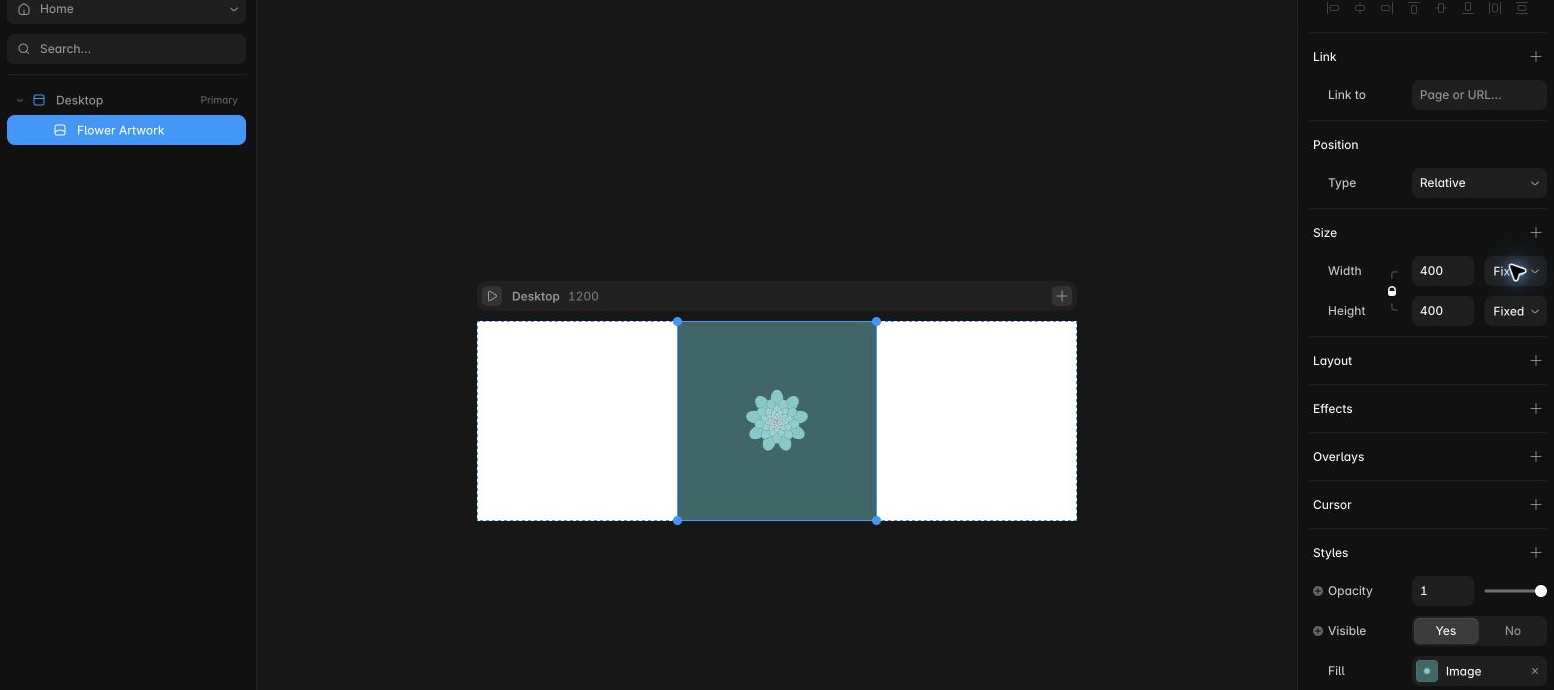
Use SVG Flower Generator to build a symmetric rosette you can place beside a heading or between sections. In this example, a pale teal flower sits on a darker square, sized independently of the rest of the page.
1. Shape the rosette
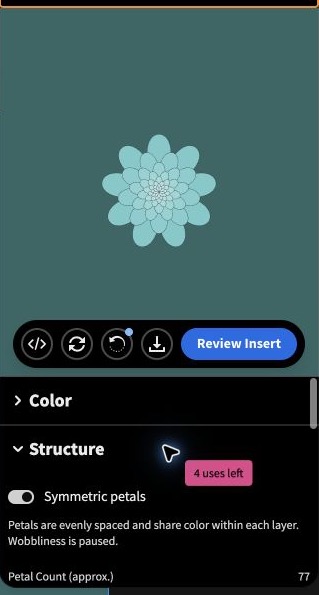
From the marketplace listing, select Open Plugin and choose your Framer project. Open Structure, keep Symmetric petals enabled, set Layer Count to 8, and turn on Rounded Petals (Tear Shape). The preview updates as you make changes, so you can check the silhouette before adding a layer.
2. Review and insert the artwork
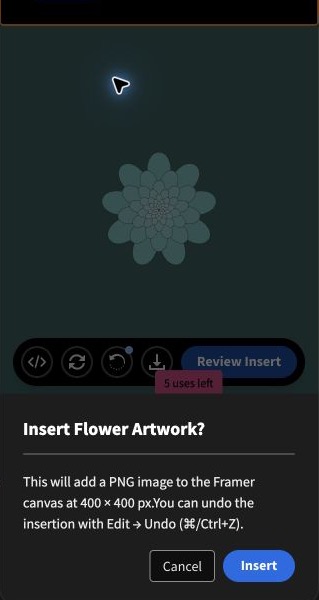
Open Insert Size and select 400 × 400. Click Review Insert and check the confirmation before clicking Insert. The dialog specifies a PNG at that size. The marketplace also lists an SVG download, which is a separate action from inserting the PNG onto the canvas.
3. Size the layer in Framer
Open Layers, select Flower Artwork, and open Style. The insert appeared as a layer with an image fill. In the example, the layer initially spanned the width of the layout. To make it a smaller accent, set Width to Fixed and enter 400. The aspect-ratio lock brought the height to 400 as well. Check both values and position the layer where it fits your page.