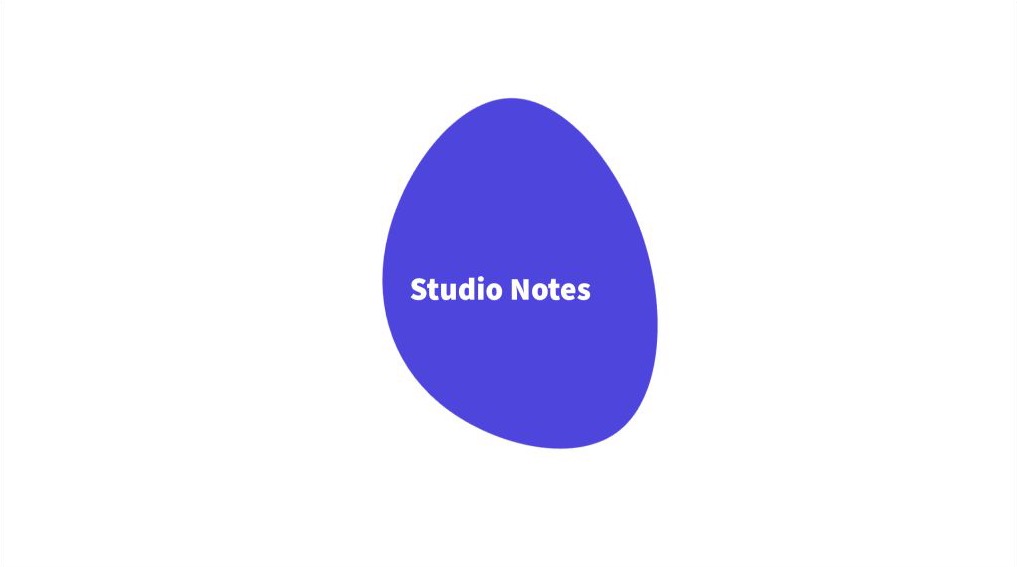
A simple shape can give a short headline a focal point. In this example, you’ll make an indigo blob with Blob Maker, insert it into a landscape design, and place a white Studio Notes headline on top.
1. Generate a solid shape
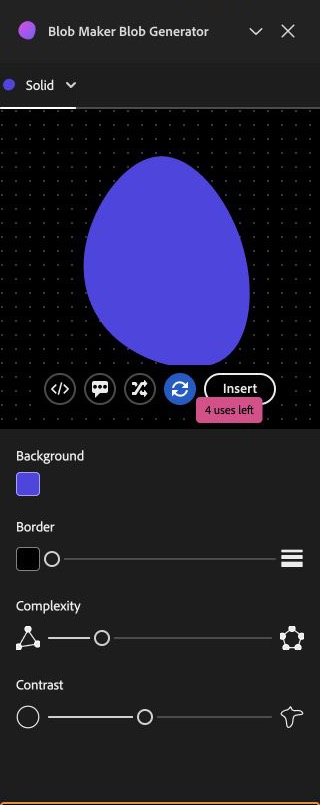
Start with a blank Landscape design in Adobe Express. Open Add-ons, find Blob Maker Blob Generator, and click Open. Keep the blob type set to Solid. Click Generate a new seed to try another silhouette while keeping the color and other settings. Look for a shape with enough space across the middle for a short headline.
2. Insert it onto the page
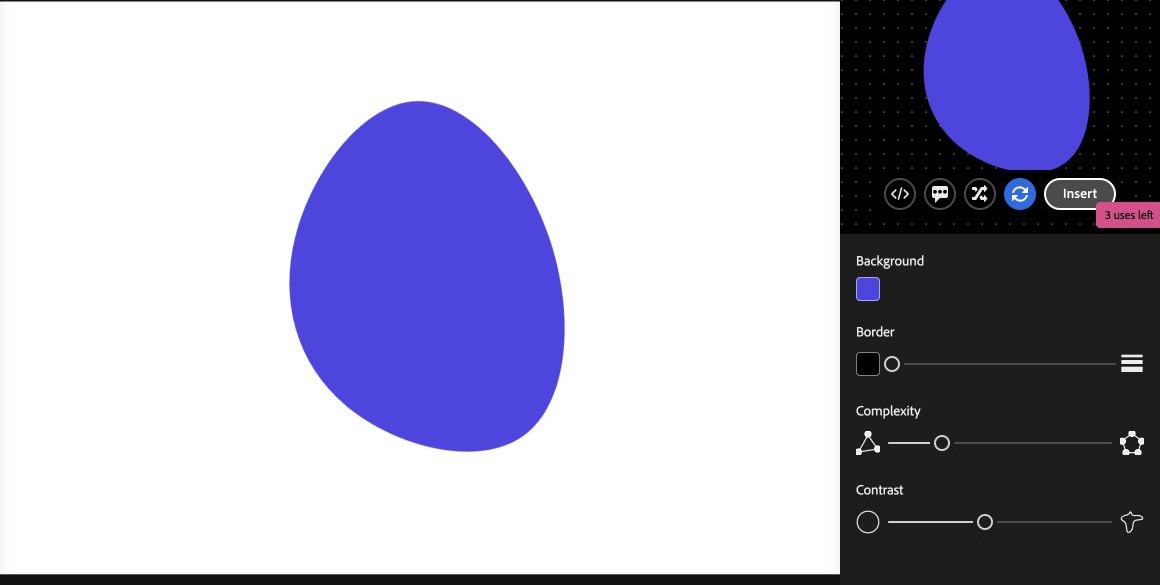
Click Insert below the preview. The blob appears on the Adobe Express page as an image layer. Place it where you want the headline to sit. In the trial, one insert reduced the displayed number of uses by one.
3. Add a headline
Close the add-on panel and select Text → Add your text. Type Studio Notes, change the Text color to white, and set the font size to 45 for this landscape example. Adjust the placement until the whole headline sits inside the shape. The text remains separate from the image, so you can edit the headline without regenerating the blob.